

Syncing subtitles
Subtitles that show up before or after the words are spoken are common with subtitles made for a different version of the same video. They were timed against a version with a different intro or logo, so every line is off by the same amount. Sync subtitles fixes that. You watch a minute of the video with the subtitles on top, and move the whole track until the lines match the speech.
Opening the panel
Section titled “Opening the panel”In Organise, select the subtitle track and press Sync subtitles in the panel on the right, beside Inspect Subtitles.
A minute of the video starts loading straight away, usually within a second. The app picks a stretch with plenty of dialogue, roughly a fifth of the way in, past the opening credits.
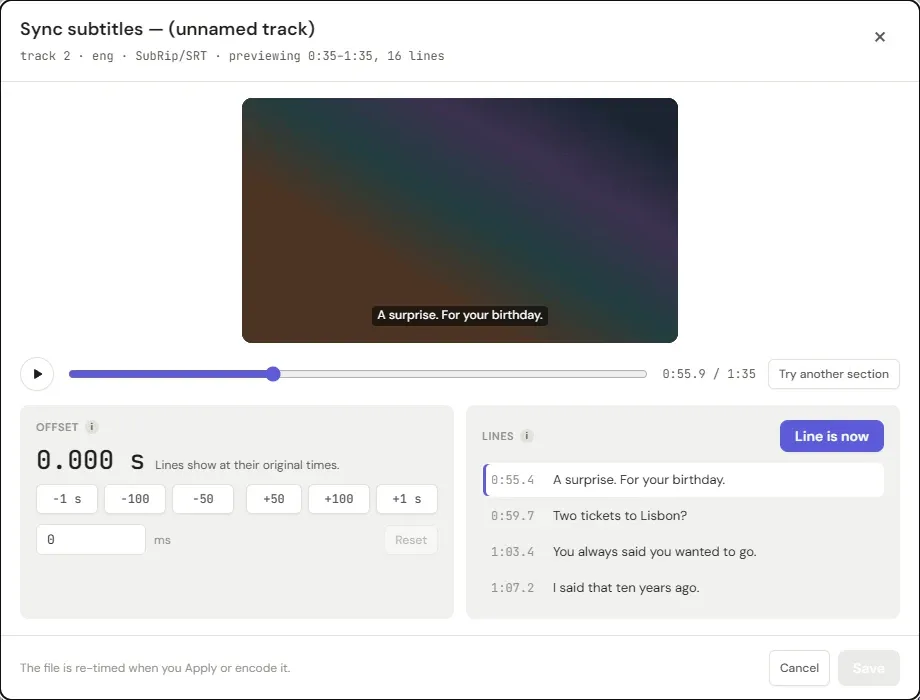
The Lines list follows playback. The line on screen is marked, with the lines that come next below it.
Line is now: the quickest way
Section titled “Line is now: the quickest way”- Press Play, or Space.
- When you hear a line spoken, press Line is now, or Enter.
- The preview pauses and asks Which line did you just hear?, listing the lines nearest that moment. Click the one you heard.
The whole track moves so that line starts at the moment you pressed. The preview then replays from just before it, so you can see straight away whether the lines now land on the speech.
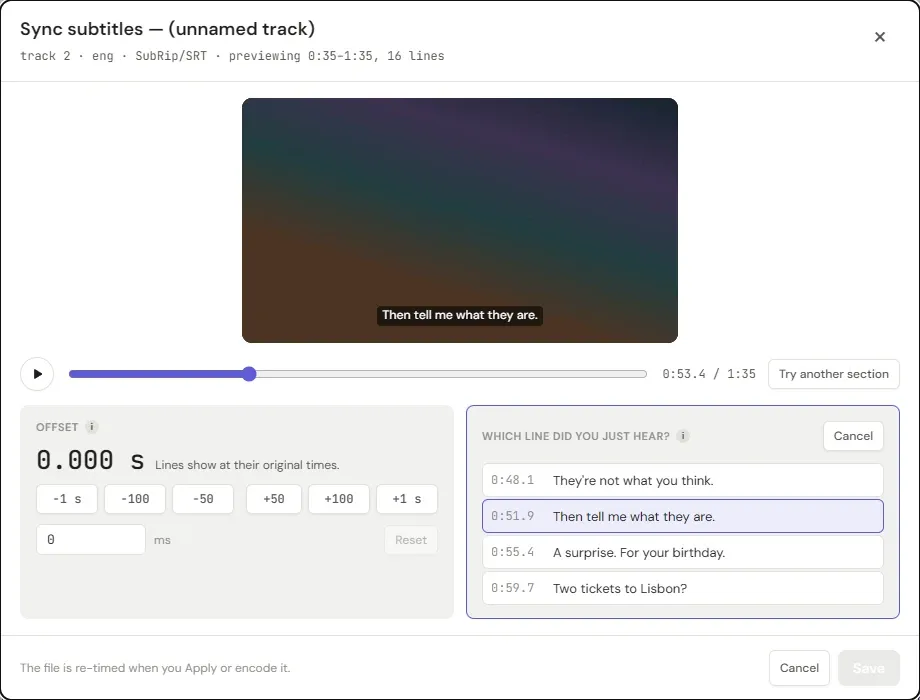
Pressing Escape backs out of the question without changing anything.
Fine-tuning
Section titled “Fine-tuning”Once the lines are close, the buttons under Offset move the track in small steps:
- −50 and +50 move it 50 milliseconds. That’s about the smallest difference anyone can notice.
- −100 and +100 move it a tenth of a second.
- −1 s and +1 s move it a full second.
Minus makes the lines appear earlier, plus makes them appear later. The large number shows the total, and the sentence beside it says which way, for example Lines appear 2.00 s earlier. You can also type an exact value, in milliseconds, and Reset puts it back to 0.
Keyboard: Space plays and pauses, , and . move the lines 50 ms earlier or later, and with Shift they move 1 s.
Check a second scene
Section titled “Check a second scene”Press Try another section to load a minute from another part of the video, and make sure the lines are still right there. The shift you’ve set carries across.
If the lines are right in one scene and wrong in another, the track is drifting: it gets further out as the video goes on. That usually means it was made for a version running at a different frame rate. A single shift can’t fix that, so look for a different subtitle file for this version instead.
Saving it
Section titled “Saving it”Press Save. The track’s row shows the shift, for example −2.02 s, and the
panel on the right says the track will be re-timed.
Nothing changes in the file until you apply or encode it, the same as every other change in Organise. At that point the track is written with its new timing. Re-timing means writing a new copy of the file rather than editing it in place, so it takes about as long as removing a track does. The subtitles themselves aren’t converted, so nothing is lost: a styled ASS track keeps its styling, and a PGS track keeps its pictures.
Encode without organising ignores every change made in Organise, and that includes a sync.
What can be synced
Section titled “What can be synced”Every subtitle track can be synced:
- Text subtitles: SRT, ASS/SSA, WebVTT and the subtitles inside MP4 files, whether they’re inside the video file or added with + Add subtitle.
- Picture subtitles: PGS and VobSub.
The preview shows picture subtitles as their real pictures, both on the video
and in the Lines list, whether they’re inside the video file or added as a
.sup, or as an .idx and .sub pair.
About the preview
Section titled “About the preview”The preview is a small, lower-quality copy of that minute, made on the fly, because the app’s window can’t play most video formats directly. It’s only there for judging timing, and your file is never changed by it. HDR video is shown converted to standard dynamic range, so it looks as it would on an ordinary screen. Dolby Vision profile 5 video is the exception and shows in odd colours here; that’s only the preview.