

Audio encoding
The Audio tab in Compress decides what every kept audio track becomes. A track is either copied exactly as it is, or encoded to a new format, channel layout and bitrate. The tab is built for the usual case: one preset processing a whole library, with the odd track that deserves different treatment.
The panel at a glance
Section titled “The panel at a glance”The tab has two halves. The top half is your preset, used by every file. The bottom half is the file selected in the file list.
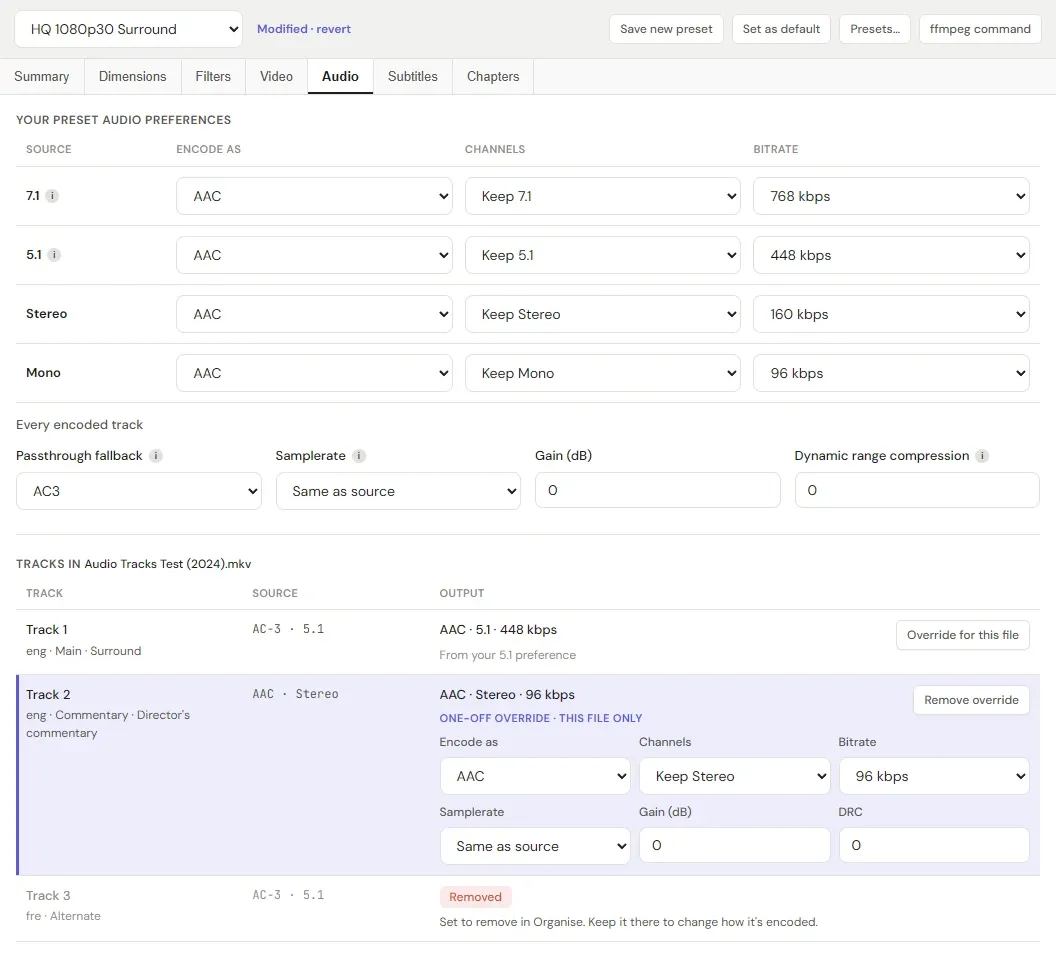
In this example the preset encodes everything to AAC, with more bitrate for more channels. The file’s main 5.1 track follows the 5.1 row. Its director’s commentary has a one-off override that drops it to 96 kbps, since speech needs far less. Its French track is greyed out, because Organise is removing it.
Your preset audio preferences has one row for each kind of source track: 7.1, 5.1, Stereo and Mono. Each row says what a track of that layout becomes. Under the rows sit five settings for every encoded track. All of it belongs to the preset, so changing anything here marks the preset Modified, and saving the preset saves it.
Tracks in lists the selected file’s audio tracks: what each one is, what it will become, and where that came from. This is where you give a single track its own settings with Override for this file.
The Settings apply to switch is greyed out on this tab. Preferences are always for every file and an override is always for one track, so the switch has nothing to do here.
How each track’s settings are chosen
Section titled “How each track’s settings are chosen”For every audio track that Organise keeps:
- If the track has an override, the override is used.
- Otherwise, the preference row that matches the track’s channel count is used.
- The result is then checked against the track and the output. A track is never given more channels than it has, an encoder’s channel and bitrate limits apply, and the container has to be able to carry it. Whenever a check changes something, the track shows a warning saying what and why.
| The source track has | It uses the row |
|---|---|
| 8 channels (7.1), or 7 (6.1) | 7.1 |
| 6 channels (5.1), or 3 to 5 | 5.1 |
| 2 channels | Stereo |
| 1 channel | Mono |
| A channel count that can’t be read | 5.1, with a warning |
Rows follow channel count, not track type, for two reasons. The channel count is read straight from the file, so it is always right. The track type (Main, Commentary and so on) is a judgement from flags, titles and language, so it never decides how a track is encoded. And the bitrate a track needs follows its channel count far more than its role, as the next sections explain. When a particular track deserves different treatment, say a commentary, that is what an override is for.
Encoders
Section titled “Encoders”| Encode as | Channels up to | Containers | What it is for |
|---|---|---|---|
| Passthrough | Whatever the source has | MKV, and MP4 or WebM with the limits below | Copies the track untouched. No quality lost and no time spent. |
| AAC | 7.1 | MKV, MP4 | The most widely played of these lossy formats, especially in stereo. |
| AC3 | 5.1 | MKV, MP4 | Dolby Digital. The long-standing surround format that TVs, soundbars and receivers decode. Stops at 640 kbps. |
| E-AC3 | 5.1 | MKV, MP4 | Dolby Digital Plus. Like AC3, but it can go above 640 kbps. The encoder FileVerdict uses doesn’t use E-AC3’s own space-saving tools, so it’s no smaller than AC3 at the same quality, and an optical (S/PDIF) connection can’t carry it. Prefer AC3 unless you need more than 640 kbps. |
| FLAC | 7.1 | MKV, MP4 | Lossless. The sound is unchanged, so it saves far less space than a lossy encoder. There is no bitrate to set. |
| Opus | 7.1 | MKV, MP4, WebM | The most efficient at modest bitrates. Always written at 48 kHz. |
Passthrough and containers. MKV carries any audio. MP4 can’t carry TrueHD, and WebM carries only Opus and Vorbis. A track set to passthrough that the container can’t carry is encoded with the Passthrough fallback instead (see Every encoded track). In WebM, only Passthrough and Opus can be chosen. The other encoders are listed but greyed out.
Channels
Section titled “Channels”Channels is either Keep, which leaves the layout as it is, or a smaller layout to mix down to. It never adds channels, so the Stereo row offers only Keep and Mono, and a stereo track stays stereo whatever you set.
Mixing down is worth it when the extra channels add nothing. A commentary recorded as 5.1 is still people talking, so stereo loses nothing that matters and needs a fraction of the bitrate.
AC3 and E-AC3 carry at most 5.1. On the 7.1 row, Keep 7.1 is shown greyed out for them and 5.1 is offered instead. A 7.1 track that reaches either encoder another way, such as through the passthrough fallback, is mixed down to 5.1, with a warning.
7.1 and your players
Section titled “7.1 and your players”AAC 7.1 and Opus 7.1 files come out correct: FileVerdict’s own tests checked that every channel lands where it should. The trouble is playback. Some players are reported to play AAC 7.1 as stereo, and some to send Opus 7.1 channels to the wrong speakers or play nothing at all. The reports come mostly from streaming boxes and TV apps. Any track that will become either carries a note saying so.
If 7.1 matters to you, encode one file first and listen on the devices you actually use. If there’s a problem, two choices avoid it: Passthrough keeps the original 7.1 untouched, and mixing down to 5.1 with AC3 gives the most widely played surround.
Bitrate
Section titled “Bitrate”Why more channels need more bitrate
Section titled “Why more channels need more bitrate”The bitrate you pick is for the whole track, and all of its channels share it. The same number stretches much further over two channels than over eight:
| Track bitrate | Per channel, stereo | Per channel, 5.1 | Per channel, 7.1 |
|---|---|---|---|
| 384 kbps | 192 kbps | 64 kbps | 48 kbps |
| 640 kbps | 320 kbps | 107 kbps | 80 kbps |
| 1024 kbps | 512 kbps | 171 kbps | 128 kbps |
So 640 kbps is generous for stereo and thin for 7.1, where each of the eight channels gets a quarter of what a stereo channel would. A 7.1 track has a third more channels than the 5.1 version of the same mix, so to sound as good it needs roughly a third more bitrate. That is why a preference row for 7.1 exists separately from 5.1 at all.
The relationship isn’t exactly proportional. The low-frequency effects channel (the “.1”) carries only bass and needs very little, and encoders code pairs of channels together, which saves bits. The rule of thumb is to scale the bitrate with the channel count, not to multiply it exactly.
Too little bitrate shows up first in high frequencies and sharp sounds. Cymbals, rain, applause and crowds turn swishy or dull, and transients lose their edge. Dialogue is usually the last thing to suffer.
What bitrate costs
Section titled “What bitrate costs”Higher bitrates cost space, and it adds up over a long video. Every kept track counts separately, so a file with a main track and two commentaries carries all three.
| Bitrate | One track, over two hours |
|---|---|
| 128 kbps | 115 MB |
| 256 kbps | 230 MB |
| 448 kbps | 403 MB |
| 640 kbps | 576 MB |
| 768 kbps | 691 MB |
| 1024 kbps | 922 MB |
| 1536 kbps | 1.38 GB |
Starting points
Section titled “Starting points”These are sensible starting points for a video’s main soundtrack, not rules. Go higher if you hear a difference, and lower for anything that isn’t the main mix.
| Encode as | Stereo | 5.1 | 7.1 |
|---|---|---|---|
| Opus | 128–160 kbps | 256 kbps | 384–448 kbps |
| AAC | 160–192 kbps | 384–448 kbps | 512–768 kbps |
| AC3 | 192–224 kbps | 448–640 kbps | Mixed down to 5.1 |
| E-AC3 | 192–224 kbps | 448–640 kbps | Mixed down to 5.1 |
Where the figures come from:
- Opus is the most efficient. Its developers describe 128 kbps stereo as close to transparent, and suggest 128–256 kbps for 5.1 and 256–450 kbps for 7.1 (Opus recommended settings).
- AAC is set higher because FileVerdict uses ffmpeg’s own AAC encoder, which is good but not the most efficient AAC encoder there is.
- AC3 is an older, less efficient format. It’s commonly found at 448 kbps, and 640 kbps is the most it can carry.
Speech needs far less. A commentary mixed down to stereo sounds fine at 96–128 kbps.
Limits on each list
Section titled “Limits on each list”The bitrate lists offer the same values as HandBrake from 32 kbps up, plus 1024. Each list only shows the range its encoder can actually write for the layout being written:
| Encoder | The least it takes | The most it takes |
|---|---|---|
| AAC | 32 kbps | 288 kbps a channel: mono 288, stereo 576, 5.1 1728, 7.1 2304 |
| Opus | 32 kbps | 256 kbps a channel: mono 256, stereo 512, 5.1 1536, 7.1 2048 |
| AC3 | 32 kbps for mono and stereo, 96 for 5.1 | 640 kbps, whatever the layout |
| E-AC3 | 32 kbps for mono and stereo, 96 for 5.1 | 4096 kbps, so the list stops at 3072 |
Below those floors AC3 and E-AC3 fail the encode. So a stereo AAC list stops at 576 kbps, a mono Opus list at 256, a 5.1 AC3 list starts at 96, and a 7.1 AAC list runs to 2304. The limits follow the layout that is written, not the source: mixing a 7.1 track down to stereo lowers the most it takes.
A bitrate outside the limits can still turn up, for instance in a preset saved by an older version of FileVerdict, or one imported from someone else. It is shown greyed out with the reason, such as 512 kbps (Opus Mono stops at 256) or 32 kbps (AC3 5.1 starts at 96). The track is encoded at the nearest limit instead, with a warning saying so, rather than the encode failing.
Things worth knowing
Section titled “Things worth knowing”- Passthrough beats any bitrate. Encoding can’t restore what a lossy source (AC3, DTS, AAC) has already lost, and each re-encode loses a little more. If a track is already lossy and near the bitrate you would choose, pass it through. Where the file states a track’s bitrate, the Source column shows it, and a warning appears if you pick as much or more, since that makes the track no smaller and a little worse.
- A track already in the chosen format is copied. An AC3 track under an AC3 row is passed through, not encoded again, when its own bitrate is no higher than the row’s. Encoding it again would only lose quality. The output reads, for example, Passthrough (already AC3 at 448 kbps). A mixdown, or a change of samplerate, gain or DRC, still encodes it.
- Any small lossy track can be copied too. With Copy lossy tracks that are small enough on, the same goes for any lossy track, whatever the row’s encoder. See Every encoded track.
- A higher setting isn’t always a bigger track. ffmpeg’s AAC encoder stops spending bits once it judges the audio doesn’t need them, so on some audio a track comes out below the figure you picked. Nothing is wrong: the extra bitrate simply wasn’t buying anything for that audio.
- Switching encoder resets the bitrate to that encoder’s starting value for the layout. Changing channels moves the bitrate along with it, unless you picked the bitrate yourself, in which case it stays, lowered only if the new layout can’t take it.
Every encoded track
Section titled “Every encoded track”These five settings sit under the preference rows and apply to every track that is encoded. A track that is passed through is copied untouched, so none of them reach it.
Passthrough fallback is the encoder used when a track set to passthrough can’t go into the container as it is: TrueHD into MP4, or anything but Opus and Vorbis into WebM. It is AC3 by default, or AAC, or None. The fallback keeps the track’s channels, within its own limits, since AC3 stops at 5.1. It also uses its starting bitrate for that layout. With None, a file that needs the fallback can’t be compressed, and the track says why. Neither fallback fits WebM, so for WebM set the row itself to Opus.
Samplerate is Same as source, 44.1 kHz or 48 kHz. Video soundtracks are normally 48 kHz already, so Same as source is the usual answer. Opus is always written at 48 kHz and ignores this setting.
Gain (dB) raises or lowers the volume: 3 is louder, -3 quieter, and 0
leaves it alone. Large boosts can clip the loudest sounds.
Dynamic range compression narrows the gap between loud and quiet passages.
Explosions come down relative to dialogue, which helps with late-night viewing
and small TV speakers. 0 turns it off, and higher values compress harder.
Copy lossy tracks that are small enough copies a lossy track (AC3, E-AC3, DTS, AAC, MP3 and so on) instead of encoding it, when its own bitrate is no higher than its row’s. Encoding a lossy track again can’t restore what it has already lost, and costs a little more, so a track that’s already small enough is better left alone. Lossless tracks (TrueHD, DTS-HD Master Audio, FLAC, PCM) are always encoded, and they are where most of the space goes: a DTS-HD MA or TrueHD track often runs at 3–4 Mbps.
Under an AAC 384 kbps 5.1 row, for example:
| Source track | Becomes |
|---|---|
| AC3 5.1 at 384 kbps | Copied |
| DTS 5.1 at 768 kbps | AAC 384 kbps, since that’s smaller |
| DTS-HD Master Audio 5.1 | AAC 384 kbps |
| TrueHD Atmos 7.1 | AAC 5.1 384 kbps, following the 7.1 row |
A track is only copied when the file states its bitrate, which most MKV files do. A mixdown, or a change of samplerate, gain or DRC, still encodes it, and so does a one-off override. The output says why a track was copied, for example Passthrough (DTS at 384 kbps, already lossy and no bigger).
Overriding one track
Section titled “Overriding one track”The preferences cover a whole library. An override is for the exceptions:
- a commentary you want to keep but not spend space on
- a foreign-language dub you keep for someone else
- one track that needs a volume boost
- a 7.1 mix that deserves more bitrate than the preset gives
Click Override for this file on the track’s row. The override starts from exactly what the track was already getting, including the preset’s samplerate, gain and dynamic range compression, so nothing changes until you change something. The row then offers six controls: Encode as, Channels, Bitrate, Samplerate, Gain (dB) and DRC. The line above them shows what they add up to once the source’s and the encoder’s limits are applied. Remove override puts the track back on its preference.
An override is strictly one-off:
- It applies to that one track of that one file.
- It never changes the preset and never marks it Modified.
- It is never saved into a preset or exported with one.
- Switching preset keeps it. Modified · revert clears it, along with every other per-file setting.
If Organise later sets an overridden track to remove, the override is kept but not used. The row says so, and the file is marked Check audio. Keep the track again in Organise and the override comes back.
Reading the track list
Section titled “Reading the track list”Each row shows the track’s number, its language, its role from Organise and its title, then the Source (codec, layout and, where the file states it, bitrate) and the Output.
| The row shows | What it means |
|---|---|
| An output, with From your 5.1 preference | The track is kept and uses that row. |
| One-off override · this file only | The track has an override, edited in the row. |
| Suggested, “Kept, but not renamed or re-flagged until confirmed in Organise” | Organise isn’t sure about it. It is encoded as shown, keeping its own name and flags, until you choose Keep or Remove. |
| “Scanning — Organise may still set this to remove” | The file is still being classified. The track can already be overridden. |
| Removed, “Set to remove in Organise” | Nothing is written for it. Keep it in Organise to change how it’s encoded. |
| Copied as it is | The file isn’t set to compress, so its audio is copied unchanged. |
Which tracks are kept is always Organise’s decision, never this tab’s. In return, Organise shows an Encoded as line for every audio track, so you can see what Compress will make of it without leaving the track.
Warnings appear under the track they belong to. They cover a mixdown, a fallback encoder, a bitrate held to its limit, a bitrate no lower than the source’s, 7.1 playback, and a channel count that couldn’t be read. Any file with a warning is marked Check audio in the file list, so problems don’t hide in a file you haven’t selected. A track that can’t be written at all shows the reason in its place, and the Summary tab flags it too.
A file already in the Queue shows the settings its job will use, and its rows can’t be changed.
Presets
Section titled “Presets”The preference rows and the five every-encoded-track settings are part of the preset. They are saved, exported and imported with it; see Presets. A preset from an older version of FileVerdict, which had a single audio setting, is converted when it loads. That setting fills all four rows, and its old mixdown becomes each row’s channel limit, so no row gains channels.
The built-in presets use one of four audio setups:
| Setup | 7.1 | 5.1 | Stereo | Mono | Used by |
|---|---|---|---|---|---|
| AAC | AAC 5.1, 384 kbps | AAC 384 | AAC 192 | AAC 96 | 1080p Balanced, Grainy Source, Animation, Smallest (AV1), Keep Video, Shrink Audio |
| Original | Passthrough | Passthrough | Passthrough | Passthrough | 1080p High Quality, both 4K presets, SD & Interlaced |
| Lean | AAC 5.1, 256 kbps | AAC 256 | AAC 128 | AAC 64 | 1080p Small, 720p Compact |
| Compatible | AC3 5.1, 640 kbps | AC3 640 | AAC 192 | AAC 96 | Compatible (H.264) |
7.1 is mixed down to 5.1 in the encoded setups, for the playback reasons in 7.1 and your players. A track already in the chosen format at no more than the row’s bitrate is copied rather than encoded again. The AAC and Lean setups also have Copy lossy tracks that are small enough on, so only lossless tracks and lossy ones bigger than the row are encoded.
Example setups
Section titled “Example setups”Keep the main sound, shrink commentaries
Section titled “Keep the main sound, shrink commentaries”Leave every row on Passthrough, as the High Quality and 4K presets do. On a file with a commentary, override that track to AAC, Stereo, 128 kbps. The video keeps its original audio and the commentary takes a small fraction of the space.
Save space across a library
Section titled “Save space across a library”| Source | Encode as | Channels | Bitrate |
|---|---|---|---|
| 7.1 | AAC | Keep 7.1 | 768 kbps |
| 5.1 | AAC | Keep 5.1 | 448 kbps |
| Stereo | AAC | Keep Stereo | 160 kbps |
| Mono | AAC | Keep Mono | 96 kbps |
For smaller files still, use Opus at 448, 256, 128 and 96 kbps. Either way, check 7.1 on your own players first (see 7.1 and your players).
Surround for the widest range of equipment
Section titled “Surround for the widest range of equipment”| Source | Encode as | Channels | Bitrate |
|---|---|---|---|
| 7.1 | AC3 | 5.1 | 640 kbps |
| 5.1 | AC3 | Keep 5.1 | 640 kbps |
| Stereo | AAC | Keep Stereo | 192 kbps |
| Mono | AAC | Keep Mono | 96 kbps |