FileVerdict and FileBot both get media files ready for Plex and Jellyfin, and we’re often asked which one you need. They do different jobs. FileBot matches files against online databases and renames them. FileVerdict looks at the audio and subtitle tracks inside each file and sets which ones play, and it can compress and rename too.
So if your files are badly named, FileBot is very good at fixing that. If they play the wrong audio or subtitles, or take up too much room, FileVerdict was built for that. Below is what each one does, where each is weaker, and when it makes sense to run both.
FileVerdict vs FileBot at a glance
| FileVerdict | FileBot | |
|---|---|---|
| Main job | Check and fix audio and subtitle tracks, compress, rename | Match and rename movies, TV and anime |
| Track flags (default, forced) | Reads every track and proposes the flags | Not its focus |
| Video compression | Built in, using FFmpeg | Not included |
| Metadata sources | OMDb by default, TMDB with your own free API key | TheMovieDB, TheTVDB, AniDB |
| Subtitle downloads | No | Yes, from OpenSubtitles |
| Automation | Desktop app with a review step and a queue | Command line, scripting engine and the amc script |
| Platforms | Windows and Linux | Windows, macOS, Linux, NAS packages and Docker |
| Price model | Free, with Pro bought once or once a year | Paid licence, yearly or lifetime |
FileBot details checked against filebot.net. Prices change, so see each site for current pricing.
What FileBot does well
FileBot has been around for years, and most people who run Plex or Jellyfin have heard of it. It matches files against TheMovieDB, TheTVDB and AniDB, and you can shape the names it writes in almost any way with its format expressions. It also fetches subtitles from OpenSubtitles, checks checksums, extracts archives and keeps a history of renames so you can undo them.
It’s built to run without anyone watching. With the command line and scripting engine you can set up renaming on a NAS or server that runs by itself, and FileBot runs on Windows, macOS, Linux, Synology, QNAP, unRAID and Docker.
For scripted renaming on a server, FileBot is the better choice.
What FileVerdict does differently
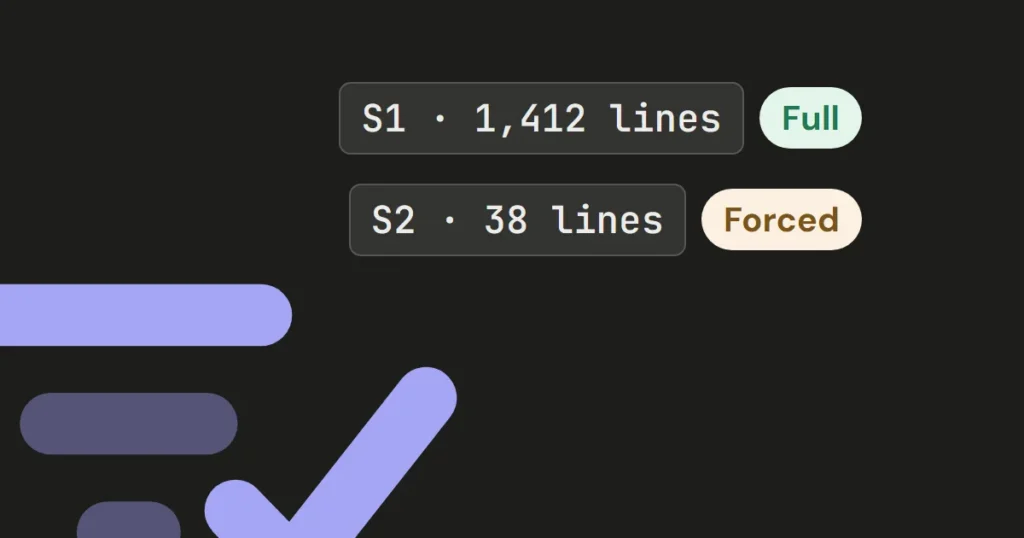
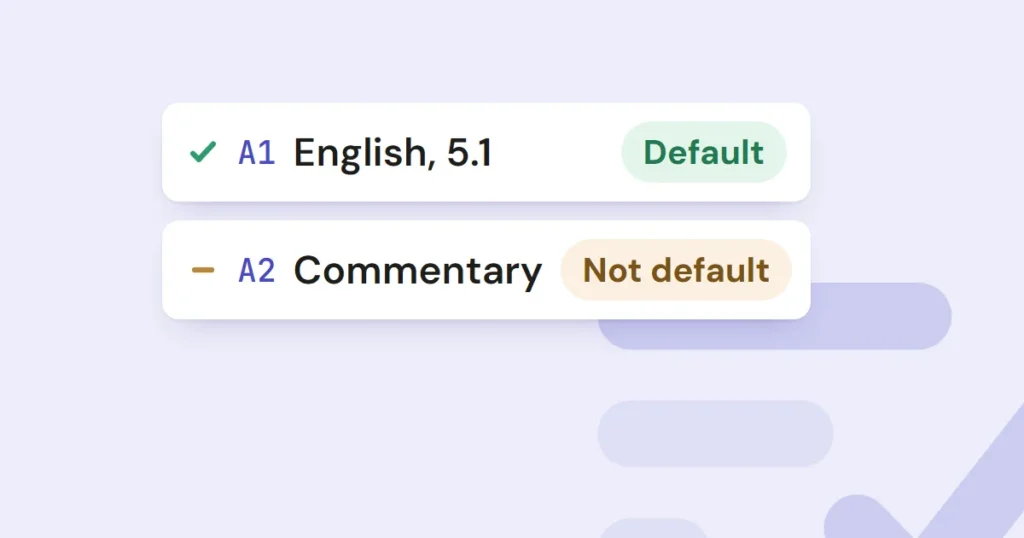
FileVerdict looks inside the file. A subtitle track labelled English could be the full dialogue or forty lines of translated signs. An audio track labelled English could be the film or the director’s commentary. Plex and Jellyfin only see the labels, so when the labels are wrong, they pick the wrong track.
FileVerdict reads every audio and subtitle track, works out what each one is, and proposes the default and forced flags. For subtitles it counts the lines, and it reads picture-based subtitles too, which is how it tells a full track from a signs-only one. Each suggestion comes with the reason for it, anything it isn’t sure about is marked Suggested, and flags are changed without re-encoding.
Every track gets a verdict, with the evidence behind it.
Agree, override, or leave anything marked Suggested for later.
The flags are set and a new file is written. Nothing changes before this.
The same app compresses video with FFmpeg and renames files against OMDb or TMDB. Without it, that usually means MKVToolNix, a separate encoder and a renamer.
Where FileVerdict falls short
- No command line or scripting yet. It’s a desktop app you drive by hand.
- No macOS version yet.
- Fewer metadata sources than FileBot, and no AniDB support.
- Naming is less customisable than FileBot’s format expressions.
- No subtitle downloads. It works with the tracks already in your files.
Which should you use?
- Choose FileBot if renaming is your main problem and you want it automated on a server.
- Choose FileVerdict if your files play the wrong audio or subtitles, or you want to compress and organise in one pass with a review step.
- Use both if you like FileBot’s automation for new downloads and want FileVerdict to fix tracks and file sizes across an existing library.
Running both is common. FileVerdict covers the part a renamer doesn’t touch.
In short
- FileBot names files. FileVerdict checks what’s inside them, then names and compresses them.
- FileBot is better for scripted, server-side renaming.
- FileVerdict is better for wrong tracks and file size, with a review step.
- Many people use both.
Frequently asked questions
Is FileVerdict a replacement for FileBot?
Not exactly. Both rename files, but FileVerdict focuses on checking audio and subtitle tracks and compressing video. If you rely on FileBot’s scripting or AniDB support, FileBot is still the better renamer.
Can FileBot set forced subtitle flags?
FileBot is built for naming and organising, not for editing the tracks inside an MKV. To change default or forced flags you’d normally use MKVToolNix, or FileVerdict, which checks each track and proposes the flags for you.
Does FileVerdict work with Plex and Jellyfin?
Yes. FileVerdict sets standard MKV flags and uses standard naming, which both Plex and Jellyfin read. It isn’t affiliated with either.
Is FileVerdict free?
Yes. FileVerdict is free to use. Pro adds automatic name matching and can be bought once or once a year. Nothing renews on its own, and refunds are available within 14 days.
Does FileVerdict change my original files?
Not unless you choose to. FileVerdict writes a new file by default, and nothing is applied until you review it.