You press play and get the director’s commentary, or a dub in another language, or subtitles you didn’t turn on. You switch it back, and the next time you play the file it happens again.
When Plex or Jellyfin plays the wrong audio or subtitle track, it’s nearly always down to how the tracks inside the file are labelled, together with your language settings. This guide covers how the server picks a track, the five usual causes, and how to fix them so they stay fixed.
In this guide
- How Plex and Jellyfin choose a track
- The five usual causes
- Step 1: check your server settings
- Step 2: fix the tracks in the file
- Step 3: refresh and test
- Frequently asked questions
How Plex and Jellyfin choose a track
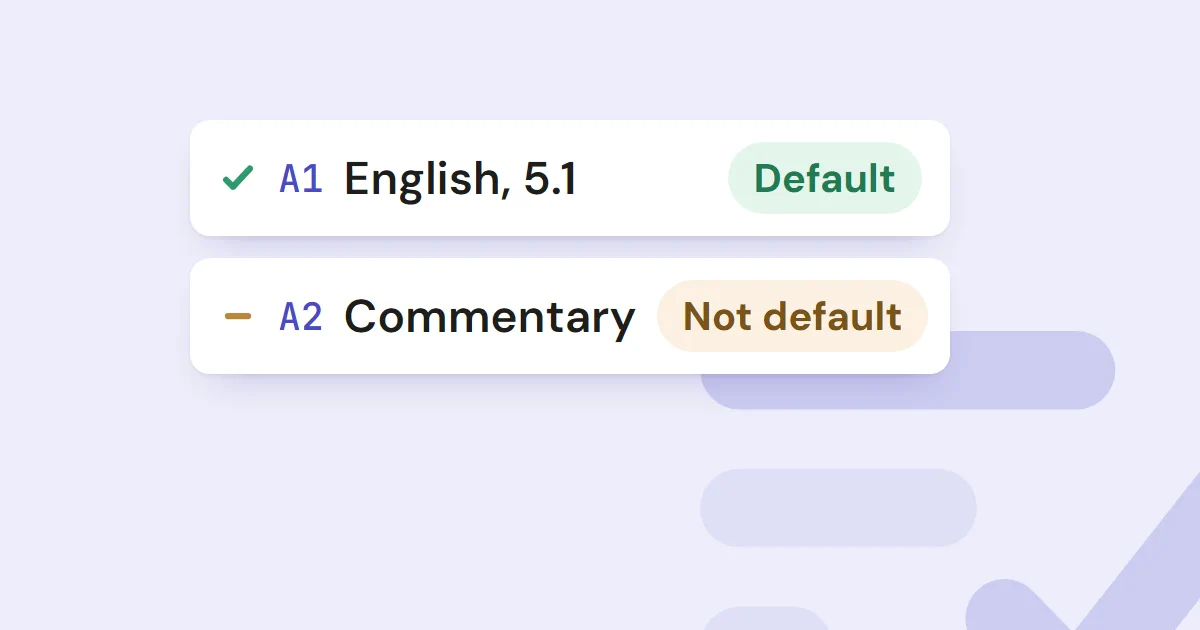
An MKV file can hold several audio and subtitle tracks. Each track carries a few labels:
- Language, such as
engorfre, orundif it’s undetermined. - Name, an optional title such as
CommentaryorSigns. - Default flag, which marks the track to use when nothing else decides.
- Forced flag, which marks subtitles that should show even when subtitles are off.
When you press play, Plex and Jellyfin compare those labels with your language preferences and pick a track. They don’t listen to the audio or read the subtitles, so wrong labels mean the wrong track.
The five usual causes
- The wrong track is flagged as default. A commentary or dub marked as default will often be chosen, especially if your language preference doesn’t rule it out.
- The language is missing or set to undetermined. The server can’t match the track to your preference, so it falls back to whichever track is first or flagged default. Plex’s automatic subtitle selection also needs both the audio and subtitle tracks to have a language set.
- Several tracks share a language. Two English audio tracks, one main and one commentary, look the same unless the flags or names tell them apart.
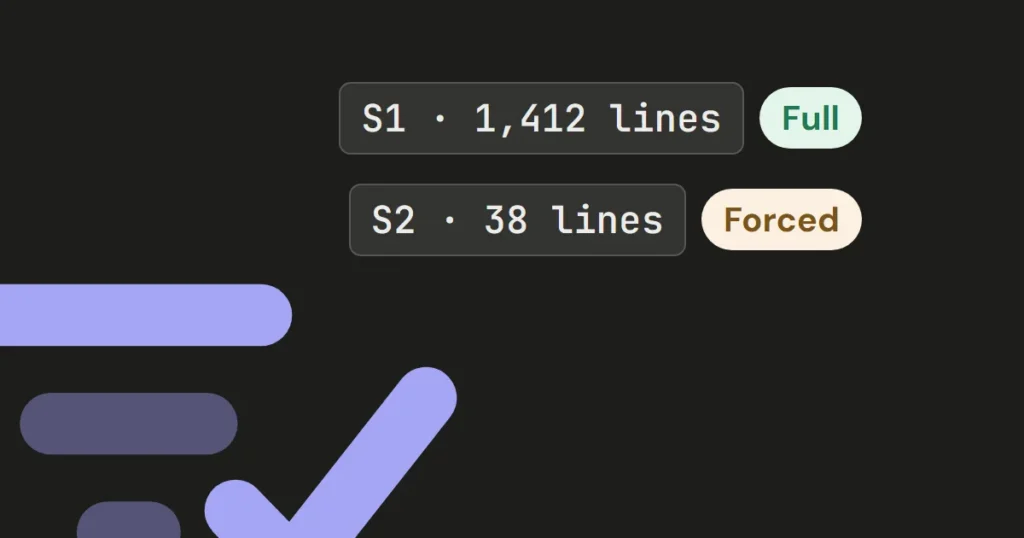
- Forced subtitles aren’t flagged. A short signs-only track looks identical to a full one, so the server can’t tell which to show. See forced vs full subtitles explained.
- Remembered choices and app differences. Plex and Jellyfin can remember a track you picked manually, and some apps handle selection differently from others.
If a film opens with subtitles nobody asked for, check which subtitle track is flagged as default before anything else.
Step 1: check your server settings
Before changing any files, make sure your preferences are right.
In Plex: open your account’s language settings. Set your preferred audio and subtitle languages, and turn on automatic selection of audio and subtitle tracks. The auto-select subtitle mode decides when subtitles appear: Manually selected, Shown with foreign audio or Always enabled. If you only want subtitles for foreign dialogue, Shown with foreign audio is usually right.
In Jellyfin: open the user’s profile, then the subtitle and playback settings. Set the preferred audio and subtitle languages, then choose a subtitle mode: Default, Smart, Only forced, Always or None. Default follows the flags in the file, so it shows whichever subtitle track is flagged as default. If you’d rather keep subtitles off unless they’re needed, choose Smart or Only forced.
Settings are per user, so check each account that has the problem.
Step 2: fix the tracks in the file
If the settings are right and the wrong track still plays, the file’s labels need fixing.
Option 1: fix it by hand with MKVToolNix
MKVToolNix is free and precise. Open the file, then:
- Set the correct language on every track.
- Set the default flag on the main audio track only, and turn it off on commentary and dubs.
- Set the default flag on the full subtitle track, not the forced one.
- Set the forced flag on signs-only subtitles, and make sure the full subtitle track isn’t forced.
- Give tracks clear names, such as
CommentaryorSigns.
That’s fine for a few files. Across a large library, the slow part is working out what each track is, because the labels are so often missing or wrong.
Option 2: let FileVerdict check every track
FileVerdict reads each track instead of going by its label. For subtitles, it counts the lines, and reads picture-based subtitles, to tell a full track from a signs-only one. It suggests the default and forced flags, gives the reason for each, and marks anything it isn’t sure about as Suggested. Flags are changed without re-encoding, and nothing changes until you review it.
Every audio and subtitle track gets a verdict, with the evidence behind it.
Agree, override, or leave anything marked Suggested for later.
The flags are set and a new file is written. Nothing changes before this.
Step 3: refresh and test
After fixing a file, refresh the item’s metadata in Plex or Jellyfin so the server reads the new flags. If an app still picks the wrong track, choose the right one by hand once, as the server may be remembering an earlier choice. Then test on the device you normally watch on.
If the right track plays but the file buffers or the server is working hard, that track may be making the server transcode.
In short
- Plex and Jellyfin choose tracks from their labels, not their contents.
- Check your language settings and subtitle mode first.
- Flag the main audio and the full subtitles as default. Flag signs-only subtitles as forced.
- Refresh the metadata after fixing a file.
Frequently asked questions
Why does Plex keep playing the commentary track?
Usually because the commentary track is flagged as default or comes first, and both tracks share the same language. Set the default flag on the main audio track only, and name the commentary track clearly.
Why does Plex play a dubbed track instead of the original?
Either the dub is flagged as default, or your preferred audio language matches the dub. Check your audio language preference, then make sure the track you want is the one flagged as default.
Why does Jellyfin pick the wrong subtitles?
Jellyfin’s subtitle mode and your preferred language decide which track is chosen. In Default mode it follows the default and forced flags in the file, so a wrongly flagged track will be picked. Check the mode first, then the flags.
Can I fix this without re-encoding the video?
Yes. Changing track languages and flags doesn’t touch the video or audio, so there’s no loss of quality. Both MKVToolNix and FileVerdict can change flags without re-encoding.